Automating Payroll Payslips in Excel
Turning a manual, copy-paste payslip routine into a simple macro that runs in seconds.
A client was manually generating around 50 payslips every month by copy-pasting payroll data into a separate Excel file and printing each one individually. I restructured his workbook and added a small VBA macro that automatically creates payslip PDFs for all employees—two per page—cutting the process from hours to minutes.
Background
Client: Small business owner (Maldives)
Tools: Microsoft Excel, VBA, PDF export
Type of Work: Ad-hoc process improvement / automation
The client first contacted me because some of the formulas in his Excel payroll sheet were “not working properly”. Once I looked at the file, I realised the problem was deeper than a broken formula: parts of the sheet were linked to another Excel file on his desktop. With desktops increasingly using cloud-sync and multiple machines, every time he moved or copied the file, the links broke and values changed.
The Original Process
His setup was essentially two separate workbooks:
- Workbook 1 – Payroll calculations: One sheet with all employees listed and their monthly payroll calculated (salaries, allowances, deductions, etc.).
- Workbook 2 – Payslip template: A single-employee payslip layout, used to print one person’s payslip at a time.
Each month, the client:
- Calculated payroll in Workbook 1.
- Copied one employee’s data manually into the payslip file (Workbook 2).
- Printed the payslip.
- Repeated this 50 times—one payslip at a time.
Besides being slow and repetitive, the cross-file links made the whole setup fragile whenever files were moved between computers.
What I Did
1. Brought Everything into a Single Workbook
- Moved the payslip template into the same file as the payroll calculation sheet.
- Reduced the risk of broken links by removing the dependency on an external workbook.
- Result: one Excel file with two sheets—Payroll and Payslip.
2. Optimised the Payslip Layout for Printing
- The original payslip template was long and narrow, printing only one employee per page.
- I duplicated the payslip layout side-by-side, so each page now contains two employees’ payslips.
- This instantly cut printing time and paper usage in half.
3. Added a VBA Macro to Automate PDF Generation
Instead of the client manually changing the employee name 50 times and printing each payslip, I wrote a simple VBA macro that:
- Loops through the list of employees in the payroll sheet.
- Fills the payslip areas for two employees at a time.
- Exports each pair of payslips as a PDF.
- Repeats until all employees are processed.
At the end, the client has a set of PDF files (each containing payslips for two employees) ready to print. Instead of running 50 separate print jobs, he just opens the generated PDFs and prints them in one go.
4. Client Enablement & Support
- The client had never heard of Excel macros before.
- I walked him through enabling macros in Excel safely.
- Showed him exactly where the “Run Macro” button is and how to trigger the payslip generation process each month.
Results
- Time saved: The client expects to save a few hours every month, especially around payroll deadlines.
- Fewer errors: No more broken cross-file links or accidental copy-paste mistakes between two workbooks.
- Simpler workflow: Everything now lives in one Excel file, with a clear monthly routine:
- Update payroll numbers on the main sheet.
- Run the macro.
- Print the generated PDF payslips.
- Happier client: For him, this felt like “magic”—a few clicks instead of a long repetitive chore.
What I Learned
- Small automations have real impact: Even a simple macro can remove hours of friction from a business owner’s month.
- Meet people where they are: The client didn’t need a new system or tool—just a smarter version of the Excel file he was already comfortable with.
- Communication matters: Taking the time to explain macros in plain language and demo the process was as important as the code itself.
- Good structure beats complexity: Cleaning up the workbook (one file, two sheets) made everything else easier to maintain.
Final Thoughts
This was a small project in scope, but a good example of the kind of work I enjoy: listening to how someone actually
works today, spotting where the time and errors really are, and then carefully introducing just enough automation
to make their life easier—without forcing them to change tools or habits overnight.
Built with Excel, VBA macros, and a focus on practical, real-world time savings.
Payroll Print Macro in Screenshots
Below are screenshots from the project.
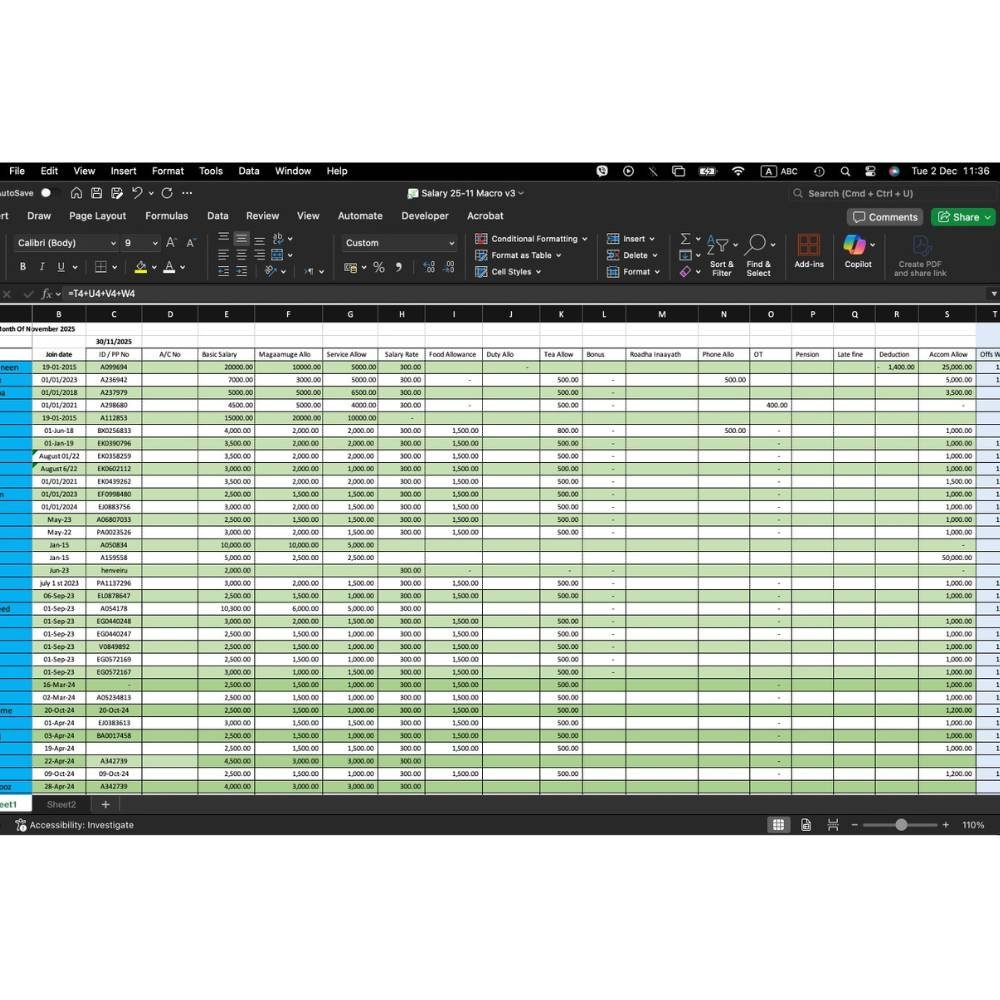
Original Payroll Sheet.
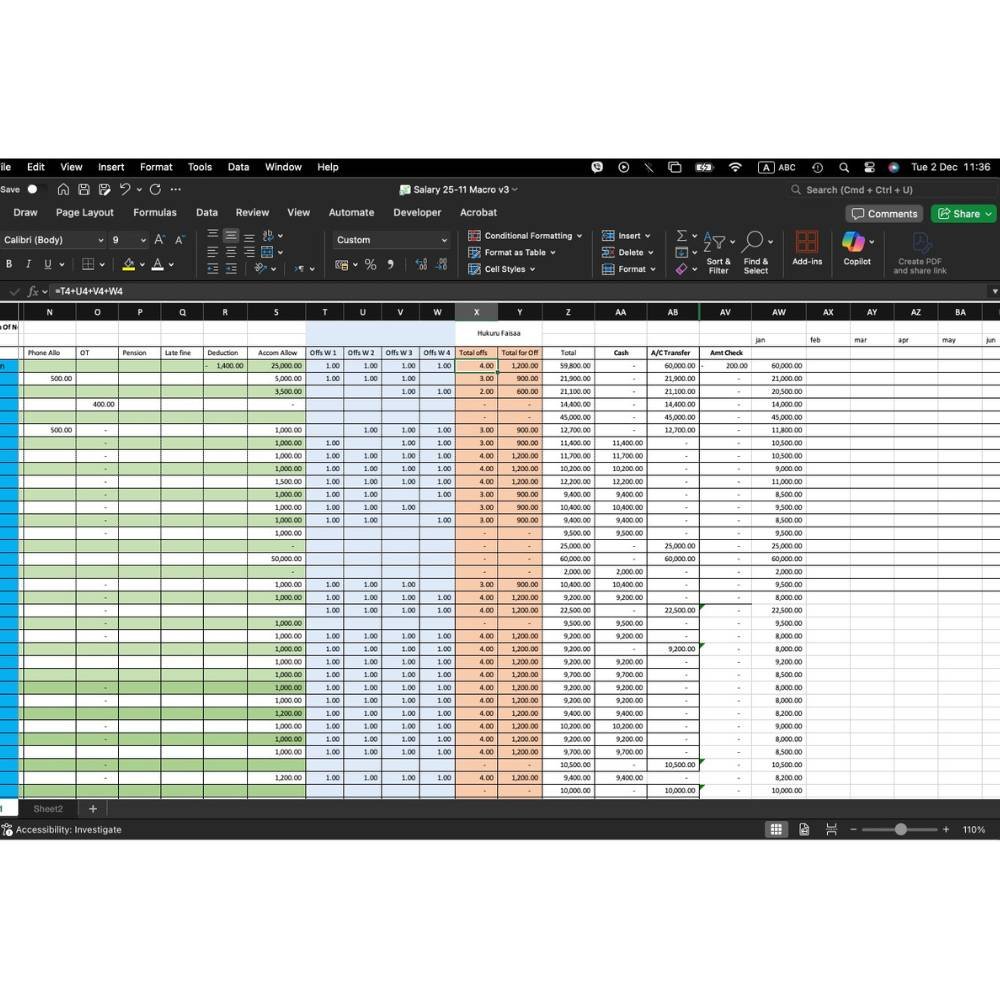
Original Payroll Sheet.
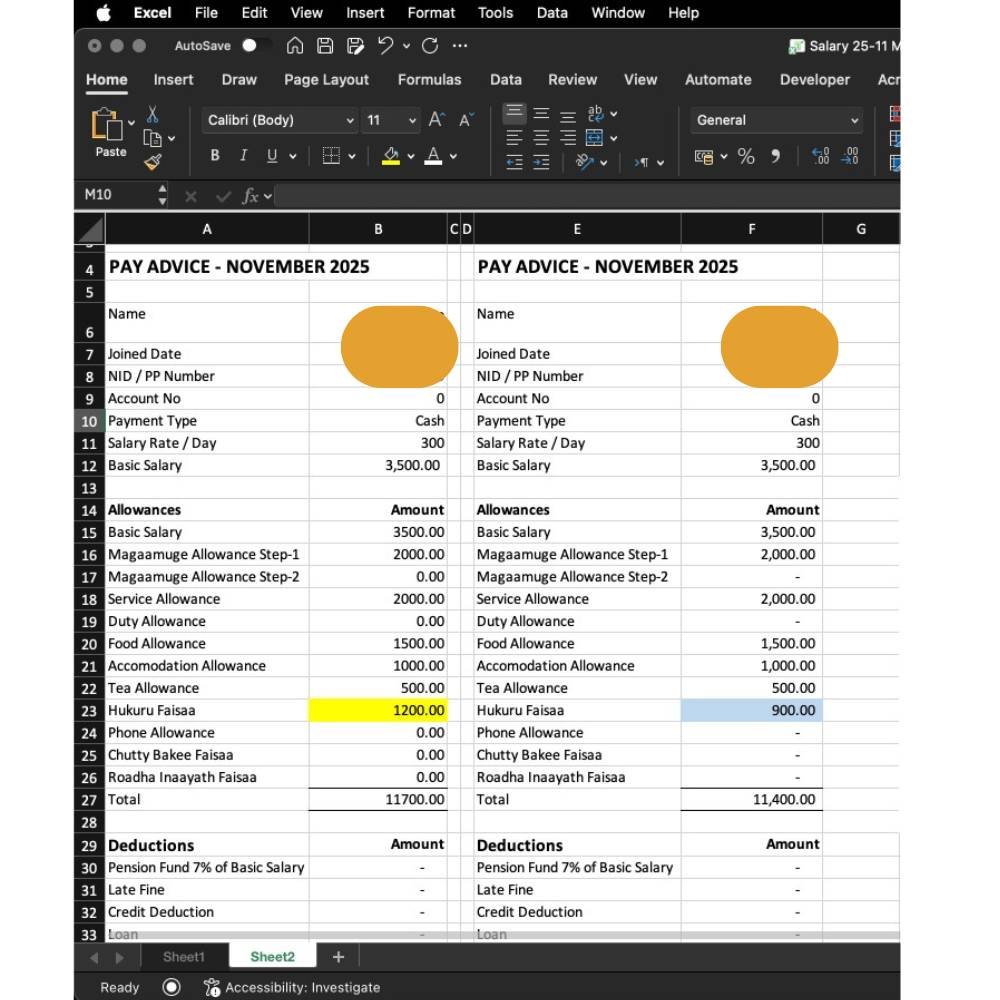
Payroll Slip. Here I have added a second slip so that it prints 2 at a time.
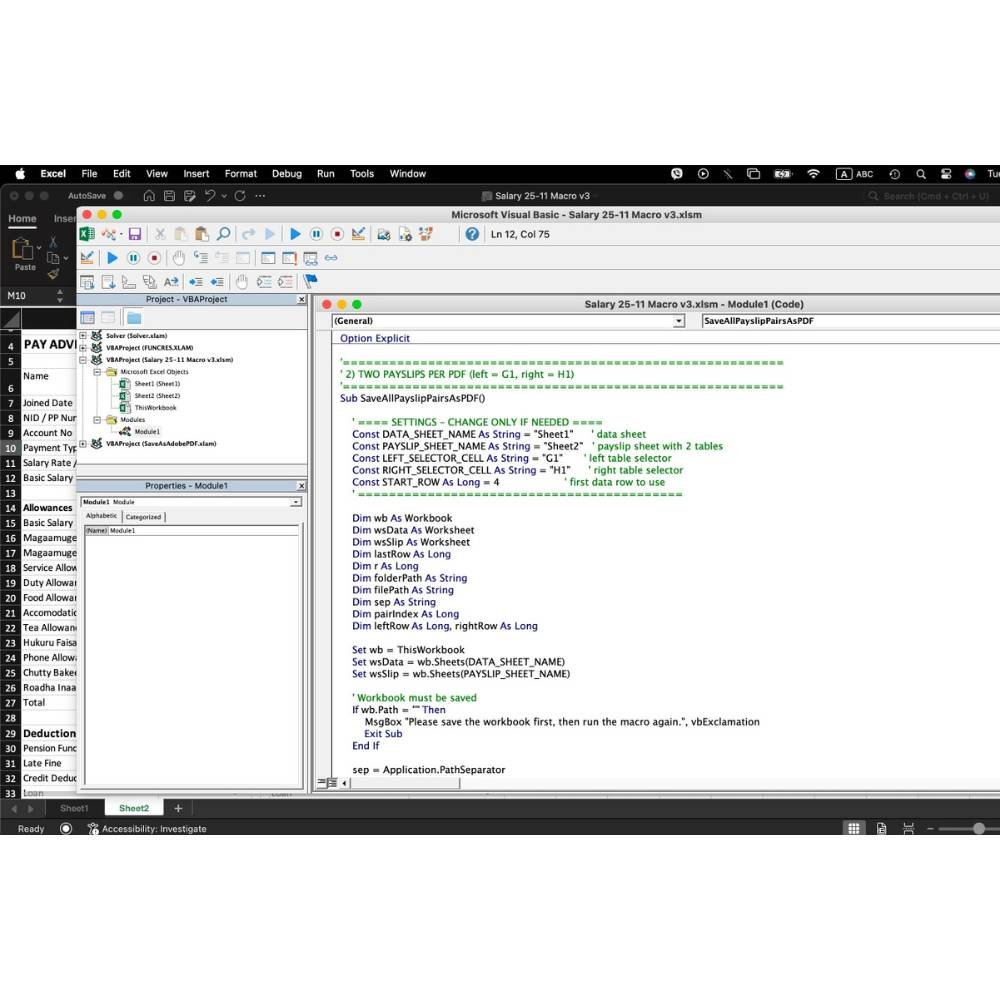
Macro added so that the payroll slips prints 2 at a time automatically till all employee slips are printed.
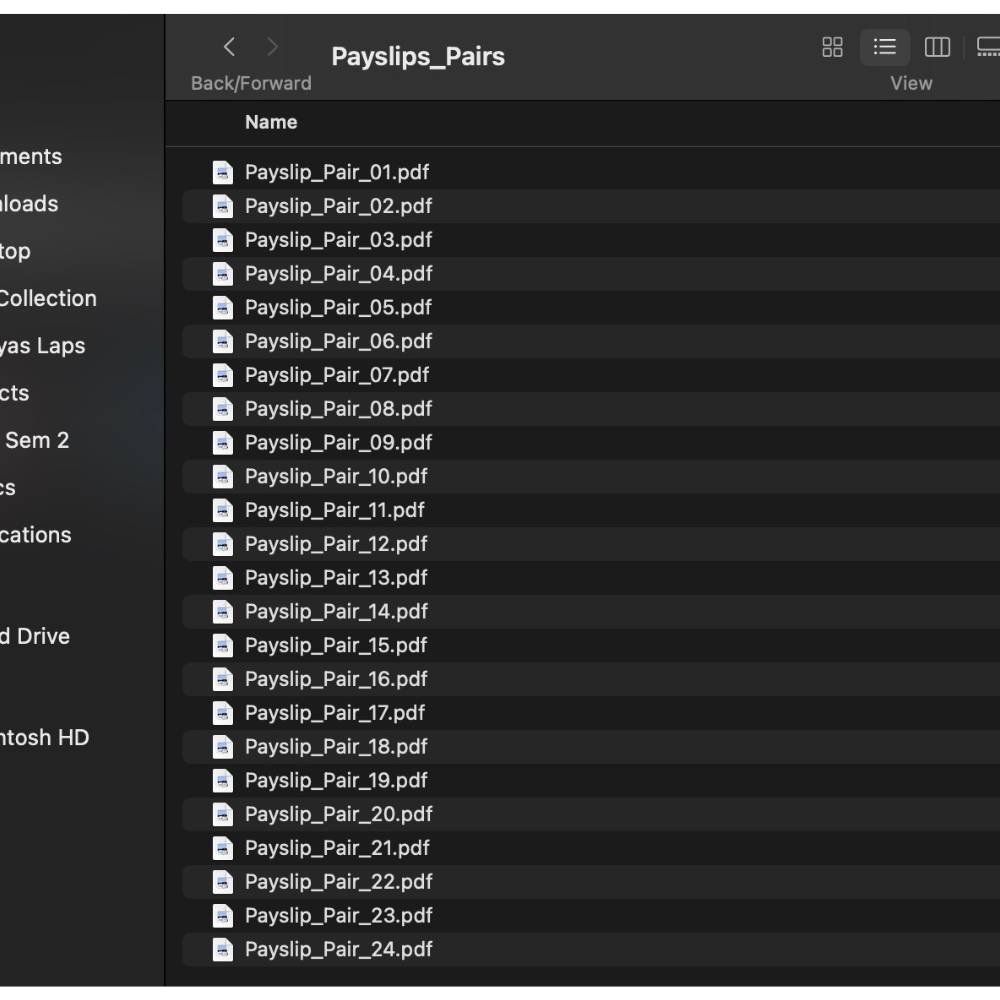
This is the output. All slips are here, it took 15 seconds after running the macro.
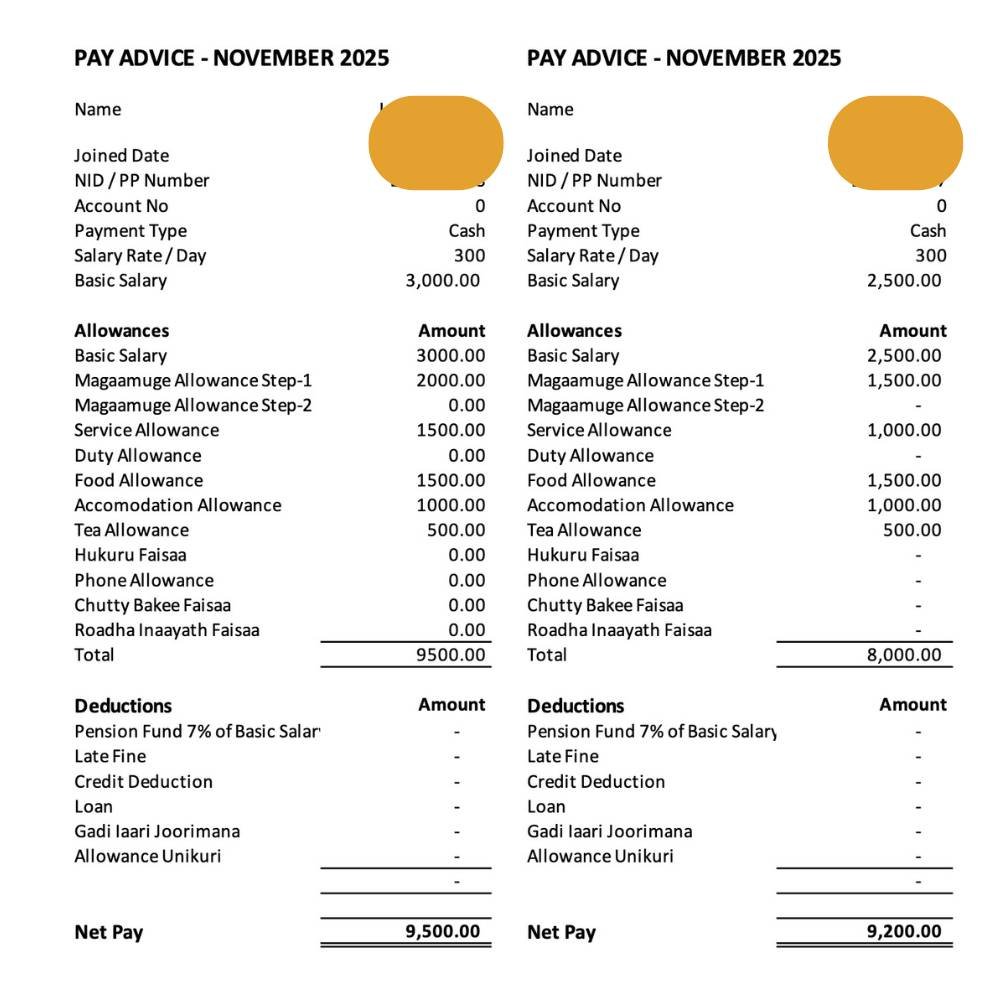
A sample preview of one PDF file.